
Choose a Canva alternative by what must stay editable. Start with Adobe Express for template-led posts, investigate Snappa for occasional social graphics, use Photopea for layered photo work, and use Inkscape for vector artwork. Test the actual export your next project needs before moving a whole library.
A replacement can save you time on one task while adding work to another. A flyer needs a different handoff from a transparent logo, a PSD composition or a stack of social posts. The choices below are based on current public product documentation, with practical tests you can run on your own files. Product pages were checked on November 19, 2026 (Beijing time).
Choose by the work you need to keep editable
| Your task | Start with | Check before switching |
|---|---|---|
| A template-led announcement | Adobe Express | Your exact template, assets and final download are available in the selected plan. |
| Occasional social graphics | Snappa | The current export allowance fits how often you publish. |
| A photo with text, masks and layers | Photopea | Your actual PSD reopens with the elements you need. |
| A scalable logo or vector poster | Inkscape | Fonts, effects and the requested vector export survive handoff. |
When your work spans more than one format
- Mostly social posts
- Start with Adobe Express for template-led work. Try Snappa as a lighter alternative when its download allowance fits your schedule.
- Social posts and layered photo edits
- Use the template editor for posts and Photopea for the editable PSD master. Check the exported image in the post layout before publishing.
- Social posts, photos and vector posters
- Add Inkscape when the recipient needs editable vector paths or SVG. Keep each editable master in its matching editor, and test the final handoff format before moving your existing projects.
For a single caption, you can finish the job in Add Text to an Image. For a logo over a photo, Overlay Images keeps the placement task focused. StylMorph publishes this guide; our browser tools are included where they directly fit the job.
Adobe Express for template-led posts
Choose it when a ready-made layout is the starting point. A social announcement often begins with a template, a photo and a few lines of copy. Adobe Express provides a free plan alongside paid plans, and its official comparison separates templates, assets, editing tools and generative features. Compare Adobe Express plans
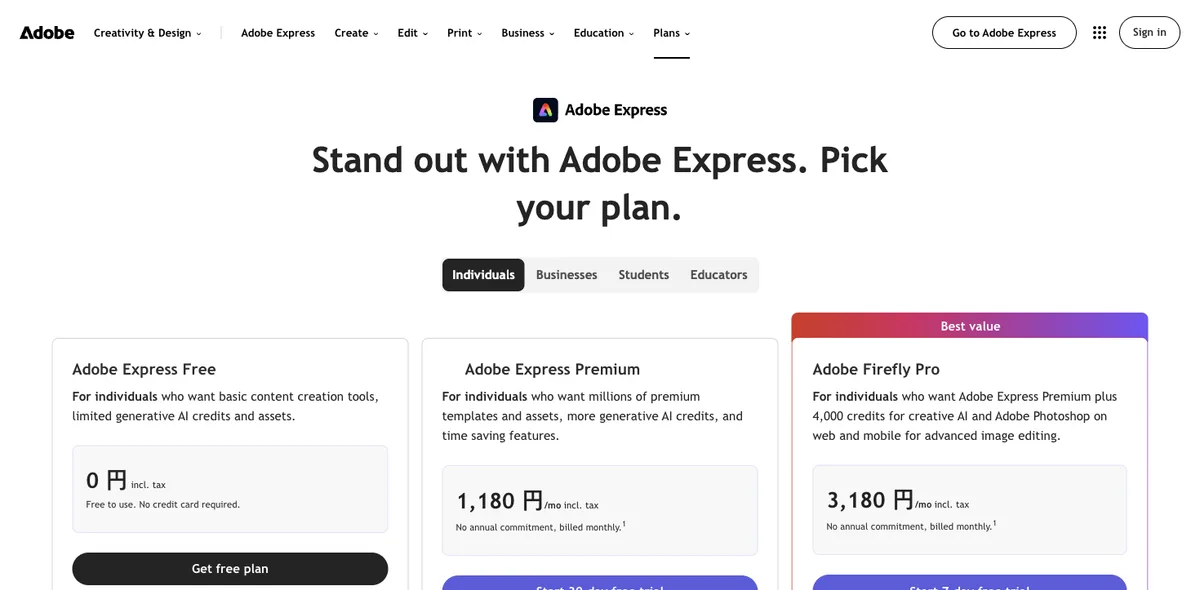
Try one announcement before deciding: choose the intended canvas shape, replace the image with your own photo, update the headline, then download the file type you actually use. Review it on your phone and in the receiving app. That test reveals more than counting available templates.
Check the constraint: a free account and a free asset are different conditions. Open the plan comparison beside your chosen template and confirm which components require a paid plan. If a colleague needs to change the layout later, confirm how the editable project is shared as well as how the flattened PNG looks.
This is a sensible first choice when you like Canva’s layout-first workflow. If your difficult task is adjusting a mask in a supplied PSD, start with the layer editor below instead.
Snappa for occasional social graphics
Choose it when your work revolves around a short sequence of social graphics. Snappa’s public site presents social posts, thumbnails and graphic creation. Its pricing page distinguishes the free starting tier from paid use, including download-related conditions. Snappa pricing and export conditions
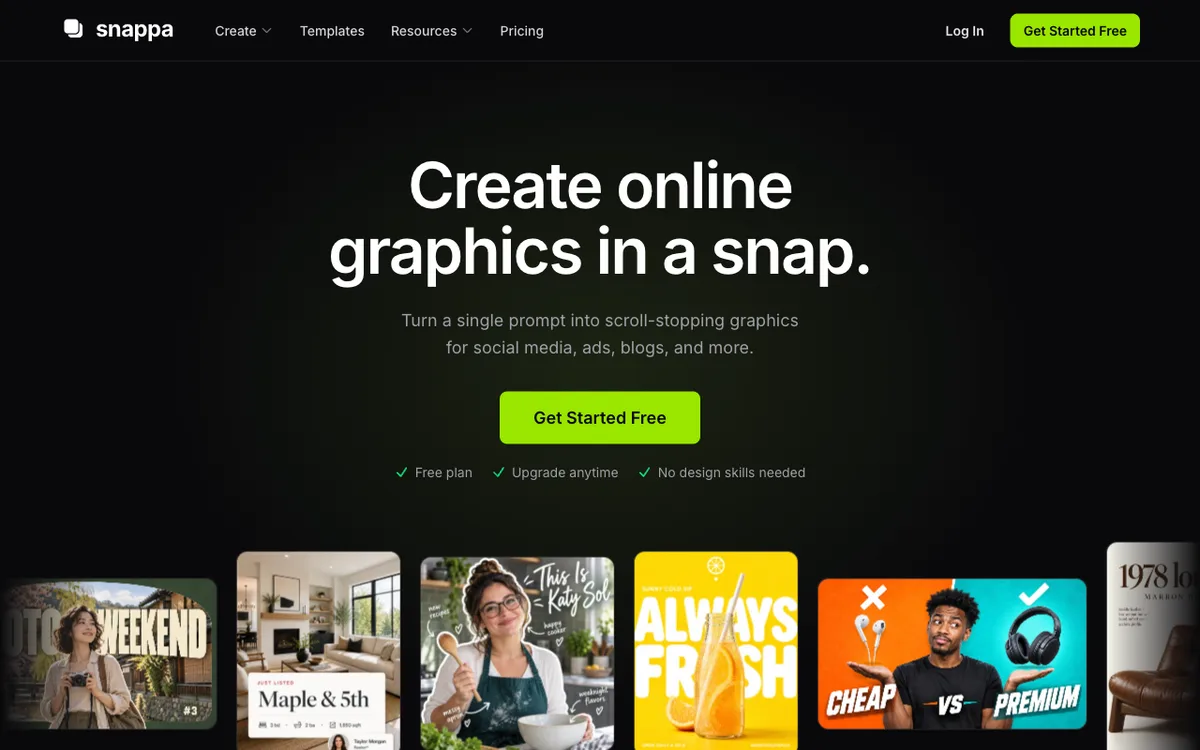
Make a thumbnail and a square post from the same source photo. Compare the effort needed to reposition the subject, change the headline and keep the same colors. Open the exported images at the size your audience will see, especially if you use small text.
Check the constraint: count deliverable files, rather than just projects. A week with three posts, two variants and replacement exports can require more downloads than the number of published designs. Read the current allowance and the renewal window before relying on a free plan.
A dedicated social-graphics workflow may feel lighter than a general editor. For a complex retouch or layered source delivery, test a photo editor separately.
Photopea for layered photos
Choose it when the layers matter as much as the final picture. Photopea runs in a browser and provides a layer-based raster and vector editing workflow. Its documentation describes opening files and saving PSD projects alongside flattened exports. Photopea’s open and save guide
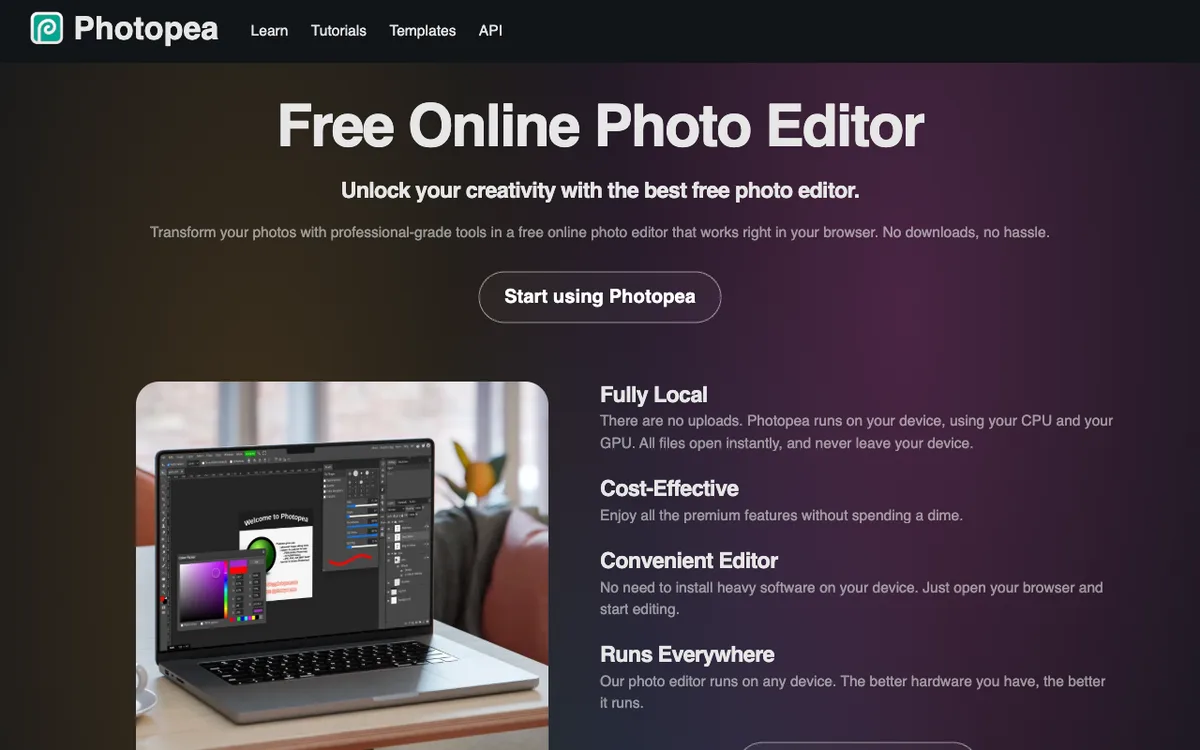
Open a representative PSD with a text layer, a mask and a placed image. Change the wording, move the image and inspect the mask at full size. Save an editable copy and reopen it in the app used by your collaborator. Compare the layers, fonts and visible result.
Check the constraint: file compatibility needs a real handoff test. A design can look correct in a flattened preview while a missing font or unsupported effect changes the next edit. Preserve the original source and write down any element you need to rasterize.
Photopea is a different learning experience from a template browser. It is useful when you want direct pixel and layer control. For more browser-editor choices organized around PSD work, retouching and drawing, see Photopea alternatives; for a narrower two-product choice, see Photopea versus Pixlr.
Inkscape for vector artwork
Choose it when paths and scalable shapes are the master artwork. Inkscape’s official learning material covers shapes, paths, calligraphy and bitmap tracing. This makes it a candidate for a logo, diagram or illustration that needs further vector editing. Inkscape’s official tutorials
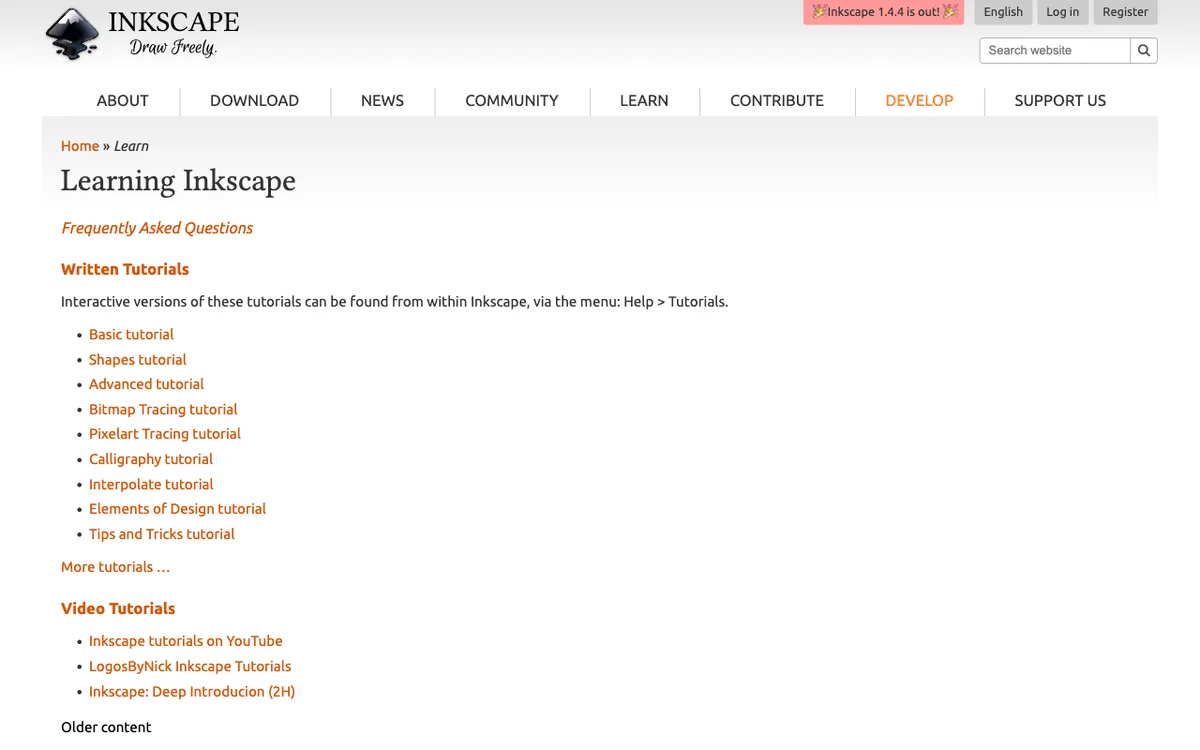
Use one small logo exercise: create a simple symbol, add the required type and save an SVG master. Reopen it and inspect the shapes at a larger size. Export a raster preview for a teammate who only needs to review the appearance.
Check the constraint: keep editable text and licensed fonts together for your own master. If the receiver requires outlined text or a specific PDF, follow that specification and retain an editable original. A raster photo placed inside a vector document still has a finite pixel resolution.
For an image-heavy social post with many ready-made assets, a template editor may be the shorter route. For final print delivery, review the printer’s requirements with the CMYK preview and proofing guide.
Run one real handoff test
- Write the required output. Specify the size, file type, transparency and who needs to edit it next.
- Use your own representative source. Include the kind of photo, font, layers or SVG effects that usually cause rework.
- Complete the project in the intended plan. Confirm the asset and export conditions before polishing details.
- Download and reopen. Check dimensions, edges, lettering and transparency in the receiving app. Reopen the editable file separately.
- Record the time and compromises. Choose the workflow that makes your repeated task easier, then migrate a small group of projects first.
Keep a working master and a delivery copy. For photo captions, check the text on the exported image rather than only the large editor preview. Use the color preview to record your foreground and background values, and keep a small style sheet with the project.
Questions before switching
Which alternative is best for a quick photo caption?
Try a focused text-on-photo tool when you only need one movable block and a PNG. Choose a full editor when you need independently editable headlines, logos and supporting copy.
Can I move every Canva design into another editor?
Test the export format available for the specific design and plan. A PNG preserves the visible result as pixels. A continuing editable workflow depends on the available source format and how the receiving app reads it.
Which option should I choose for a print logo?
Start with a vector-capable workflow and obtain the printer’s delivery specification. Keep the editable vector master, confirm fonts and colors, and approve a proof for color-sensitive work.
Do I need a subscription to add text to a photo here?
StylMorph’s browser text tool is free and processes the photo locally. AI image generation elsewhere on StylMorph uses its existing separate model and credit rules.