
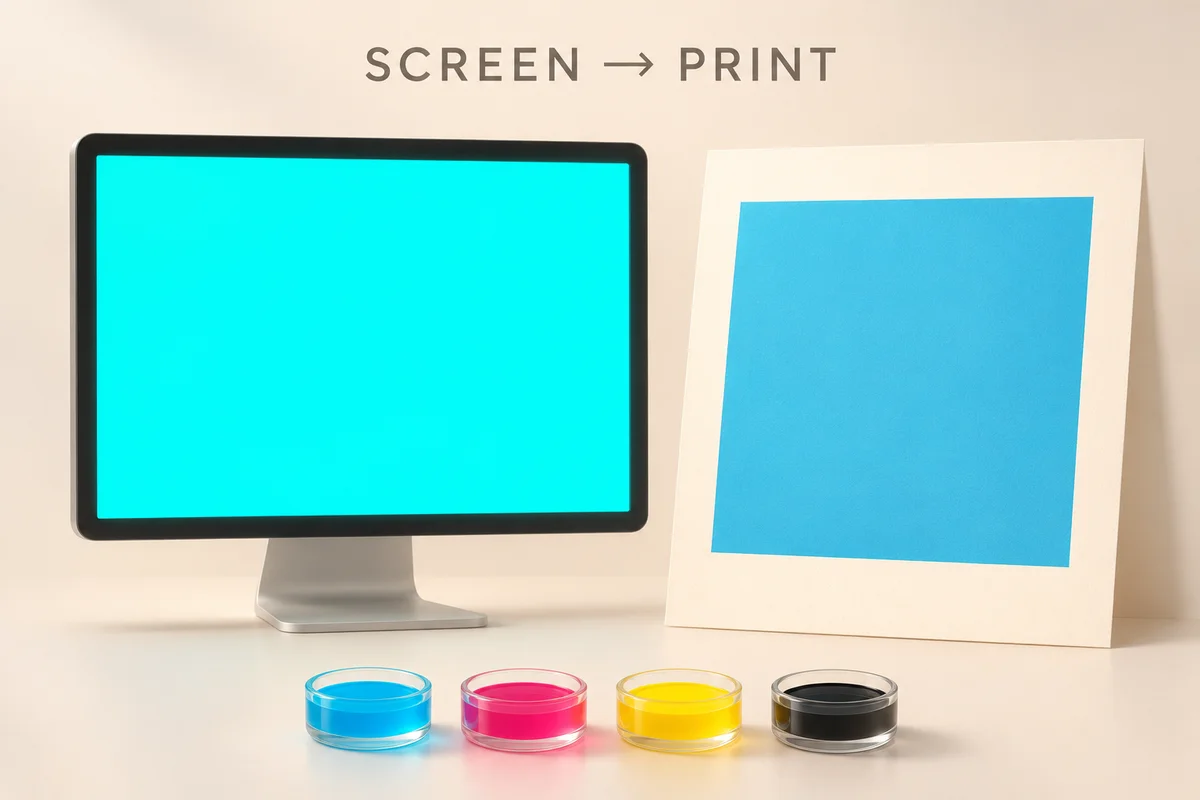
To preview CMYK color for a real print, use a soft proof with the profile for the intended printer, ink and paper, then approve a physical proof when color matters. A browser color swatch is useful for comparing a design on screen. A profile-based proof answers a different question: how this particular output condition may reproduce your image.
Start by asking where the work will be printed. A home photo printer, a commercial coated-paper press and an uncoated postcard have different conditions. “CMYK” names a color model; it does not identify all of those conditions. Keep the original editable artwork while you prepare a delivery copy.
What a CMYK preview can tell you
Your screen produces light; paper reflects the light falling on its ink and surface. A vivid screen color can sit outside the colors available to a particular printer. A useful proof helps you find those vulnerable areas before you pay for a run: saturated blue and green, deep shadows, and small color differences in important objects.
- A quick color-code preview
- Use a HEX or RGB value to compare a headline, background and button. The Color Code Visualizer makes those choices visible and measures a solid text/background contrast pair.
- A profile-based soft proof
- Simulate a specified output in a color-managed editor. Use it to decide which tones need attention and whether your chosen rendering settings preserve useful detail.
- A physical proof
- Inspect the planned stock, output process and lighting. Use a representative sample when a brand color, skin tone, product color or dark photograph drives approval.
Get the output profile first
Ask the print provider for its accepted file format, required profile, preferred color space and whether it handles conversion. Request the profile for your actual paper or stock. Record its exact name beside the job so everyone reviews the same condition.
- If the printer supplies an ICC profile: use that file in the proof setup and retain the printer’s delivery instructions.
- If the printer asks for RGB originals: keep the requested RGB profile embedded and let the agreed workflow handle the final conversion.
- If a commercial press specifies CMYK: obtain its exact target condition and export requirements before making a converted delivery copy.
A generic CMYK choice can help you explore a change, but approval depends on the actual output. Adobe’s color-managed printing instructions explain selecting a printer profile, rendering intent and proof-related preview controls.
Soft-proof a photo step by step
- Keep the master. Save your layered artwork and the original image. Make a separate proofing or delivery copy so a later edit can start from the best source.
- Set up the viewing environment. Use a calibrated display with an appropriate monitor profile. Turn down distracting ambient light and compare under consistent conditions.
- Choose the destination. In your editor’s proof or print preview, select the supplied printer/paper profile. Read the profile name before judging a color shift.
- Compare rendering choices. Evaluate important objects and shadow separation with the available rendering settings. Make the choice that serves this image and the printer’s instructions.
- Inspect the simulation. Where supported, view the paper white and gamut warnings. Toggle the proof to identify which changes come from the simulated output.
- Proof a representative section. Ask for a physical sample containing the difficult colors, darkest useful tones and small text. Review it with the output condition recorded.
Check one poster before printing
Imagine an event poster with a mountain-lake photograph and a white heading. Its proof checklist has three parts: the greens and blues retain useful differences, the shadow detail remains visible, and the heading separates clearly from the photograph.
A practical approval sheet
- Include the full poster at a size where you can judge its hierarchy.
- Add a crop of the landscape at the intended print scale.
- Include the white heading and the lake behind it together, rather than reviewing isolated swatches.
- Label the proof with the profile, stock, output date and version.
- Mark specific corrections, such as opening a shadow on the mountain, and review the revised physical proof.
Prepare the caption in Add Text to an Image or keep separate text and photo layers in PhotoCraft. Those browser PNG outputs are raster image files. Send them through the color-managed workflow requested by your printer when you need a CMYK delivery.

Hand off the right file
Follow the provider’s specification for PDF, TIFF, JPEG or another accepted format. Confirm the pixel dimensions or physical dimensions, embedded profile, fonts, bleed and crop requirements. Use Photo Frame Size Calculator to check a raster photo’s print dimensions separately from color.
Archive the editable master, delivered file, profile name and approved proof together. A colleague reopening the job should be able to identify which file was approved and for which print condition. For a vector logo mixed with raster photography, the PNG and SVG guide explains which parts stay editable.
Fix common preview problems
| What you see | Check next | Useful action |
|---|---|---|
| A bright blue becomes muted | Destination profile and gamut warning | Choose a printable alternative while inspecting the surrounding colors. |
| The picture looks too dark on paper | Display brightness, viewing light and shadow detail | Review a representative print before lifting every dark tone. |
| The same file looks different in two apps | Embedded profile and each app’s color-management behavior | Review in the agreed color-managed app and preserve the profile. |
| A print has an unexpected color cast | Who performed the conversion | Check the printer settings against the chosen editor-managed or printer-managed workflow. |
For editor-managed printing, Adobe describes disabling the printer driver’s additional color management to avoid applying another conversion. For printer-managed output, use the corresponding documented settings. Keep one agreed conversion path for the job. Adobe’s printer workflow
Questions before approving a print
Can an online CMYK simulator replace a proof?
Use it to explore colors and communicate a direction. Approve critical print colors with the destination profile and a physical sample produced under the intended conditions.
Should I convert every image to CMYK?
Use the color space requested by your output provider. Keep the original master, and convert a delivery copy only when the agreed workflow calls for it.
Can I get an exact printed color from a HEX value?
The code identifies an RGB screen value. Specify the printing condition and use a proof to choose its print reproduction. For an exact brand target, discuss the provider’s available ink and matching process.
What should I use for a web-only post?
Prepare the RGB export for its actual destination. Check its readable text, image size and compression there; a CMYK print simulation serves a different output task.