Look at the face first
In a portrait, start at neutral contrast. Raise it a little if the face and background have similar tones. Check the eyes and hair for detail as you adjust.
 StylMorph.
Convert a photo to black and white, adjust contrast, and save a full-size grayscale PNG. Compare your edit with the original in your browser.
Convert a photo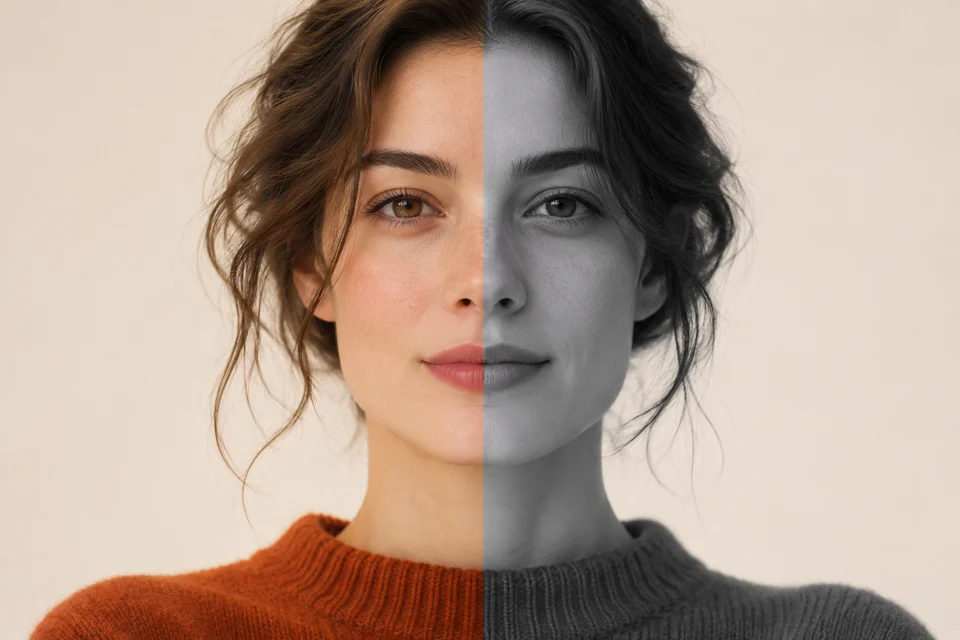
JPG, PNG, WebP · up to 10 MiB · 24 megapixels
Opening image…
Free · Your image stays in your browser.
In a portrait, start at neutral contrast. Raise it a little if the face and background have similar tones. Check the eyes and hair for detail as you adjust.
Clouds, light fabric and pale walls can lose texture when contrast is too high. Lower the slider until their edges and folds are easy to see.
Convert each photo at its own contrast setting. Compare the saved images together so one dark shot does not make the rest of the set feel uneven.
Open a JPG, PNG or WebP, or work with the sample portrait.
Slide between the color original and grayscale edit. Adjust Contrast until highlights and shadows feel balanced.
Download the grayscale image at the original pixel dimensions.
The converter weights red, green and blue into a single gray value for each pixel. Its contrast control changes the separation between light and dark tones.
Start at 0. Move right to deepen shadows and lift highlights, or left to soften the tonal differences.
Yes. The PNG keeps the decoded image width and height. The preview is scaled to fit the workspace.
Yes. The PNG keeps the source transparency while converting its colored pixels to gray.
Choose a JPG, PNG or WebP image up to 10 MiB and 24 megapixels.
Yes. Drag the divider across the preview or move it with your arrow keys.
PNG encodes the pixels differently from JPG or WebP. The dimensions can stay the same while the file uses more bytes.
Yes. Choose, compare and download in your browser without an account or credits.