
Flip Image
Mirror an image left to right or top to bottom. Preview the flipped photo beside the original, then save a full-size PNG.
Flip an image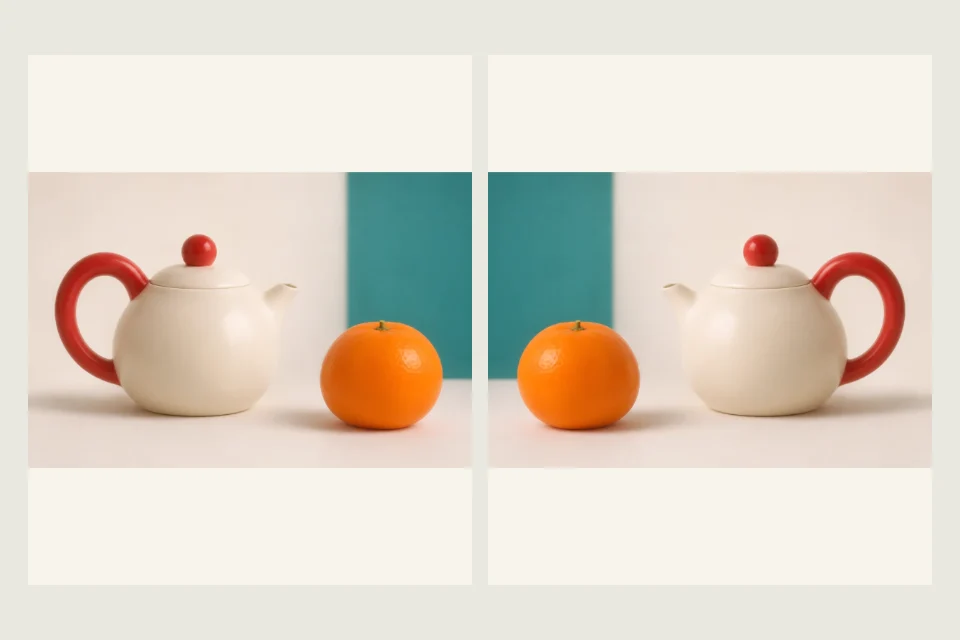
JPG, PNG or WebP · up to 10 MiB and 24 megapixels
Free · processed in your browser
See what each flip does to the same photo
Load the bicycle photo and watch the handlebars and wheels change position. Each flip keeps the sample at 960 × 640 px.
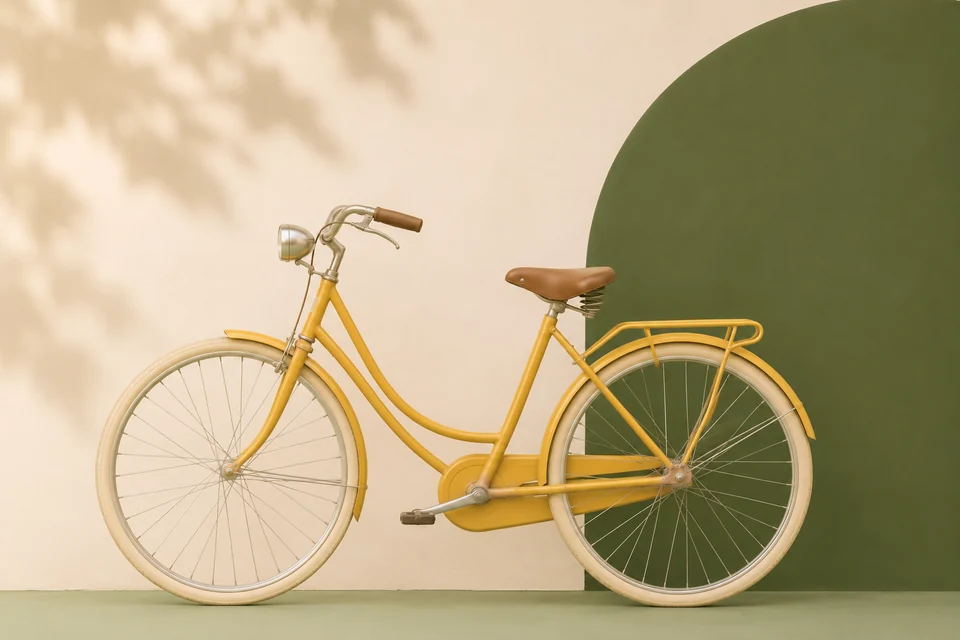
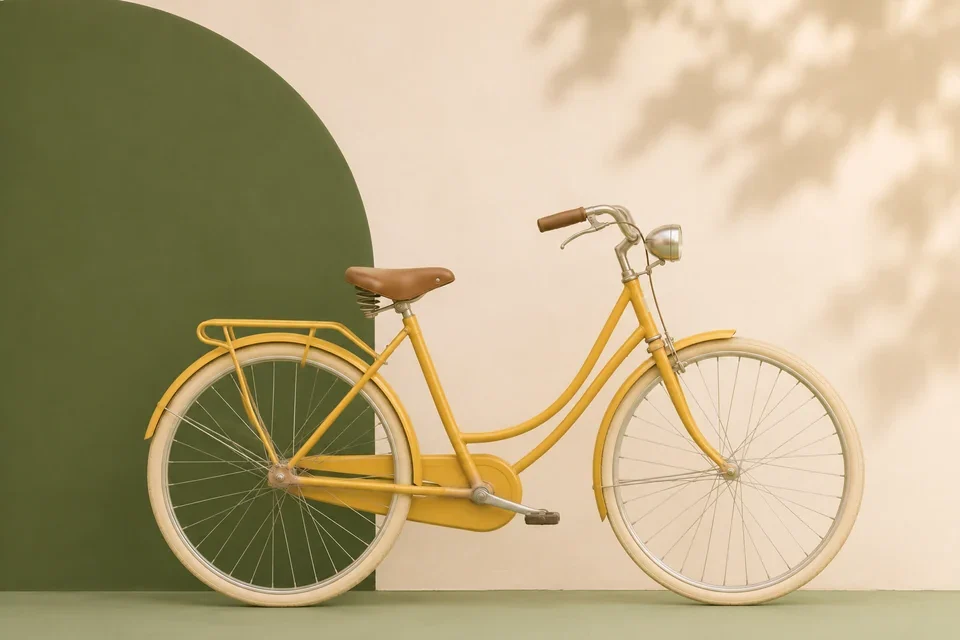
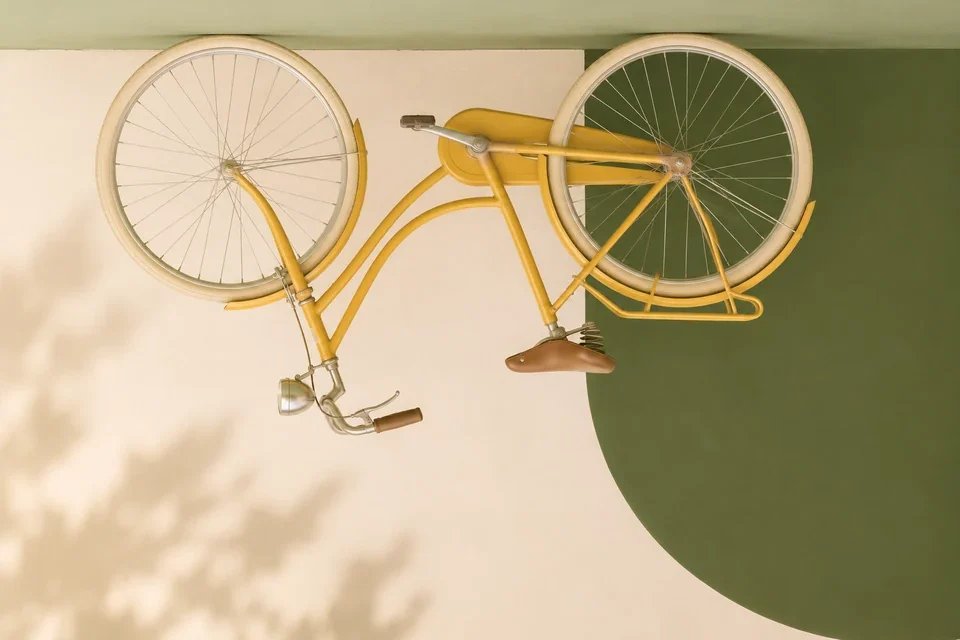
- Horizontal only
- Leave Flip horizontally on and Flip vertically off. The bicycle faces right, with its wheels still on the ground.
- Vertical only
- Turn off Flip horizontally and turn on Flip vertically. An object near the top moves down and stays on the same side.
- Both directions
- Turn on both buttons. The upper-left corner moves to the lower right. The result matches a 180° rotation.
When to flip an image
Change where a subject faces
Use a horizontal flip when a portrait should face into a layout. Check logos and lettering because they reverse too.
Create a reflection below a photo
Use a vertical flip, save the PNG, then place it beneath the original in your layout editor.
Turn a sideways photo upright
Use Rotate Image for a 90° turn. The subject turns with the frame and the lettering keeps its normal reading direction.
Frequently asked questions
Can I combine both flips?
Yes. Each direction is a toggle, and you can turn either one off independently.
Does the canvas size change?
The exported PNG keeps the original width and height.
Does the PNG keep transparency?
Yes. Transparent areas are mirrored along with the visible pixels.