A photographic negative effect
Turn a portrait or landscape into a striking color negative. Skin tones, skies, and foliage shift into complementary-looking RGB values.
 StylMorph.
Turn the colors in an image into their RGB opposites. Preview a photographic negative, flip a graphic from light to dark, or explore a different palette, then download a PNG processed in your browser.
Open the free tool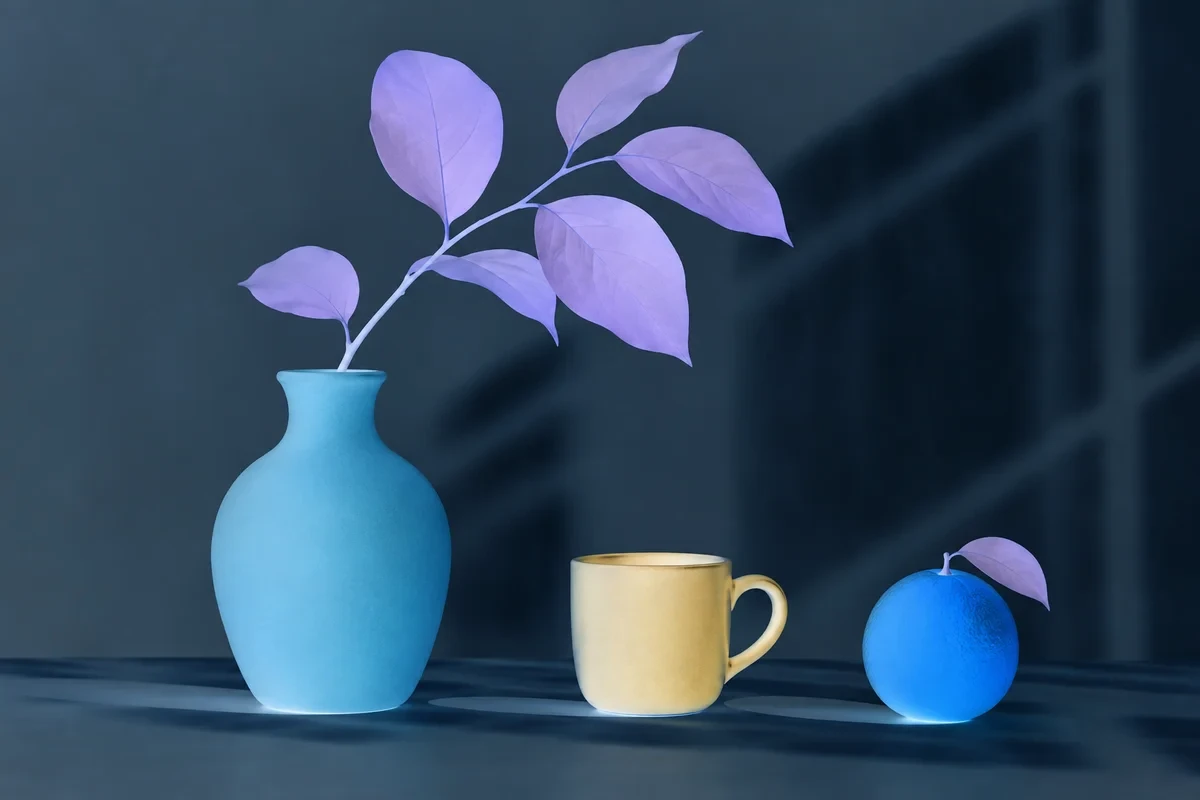
Upload a photo or start with the sample. Adjust it here, then download your PNG.
Add your photo
Drop a PNG, JPG or WebP here
Up to 10 MB · 24 megapixels
Slide from original colors to a full color negative.
Opening the sample…
Free · Runs on your device · Your photo stays in this browser
Turn a portrait or landscape into a striking color negative. Skin tones, skies, and foliage shift into complementary-looking RGB values.
Invert a simple graphic to explore a light-on-dark version. Review brand colors and fine edges before using the variation in a layout.
Use inversion to discover unusual colors in an existing composition. Compare the result with the original when planning a poster or art study.
Start from the original image so you can compare the palette and return to the source for other edits.
Choose a source with transparency when you need a cutout or logo. Inversion changes its color channels while preserving each pixel’s alpha value.
Inversion affects every pixel’s RGB values. Examine faces, small text, and brand colors to decide whether the effect suits your intended use.
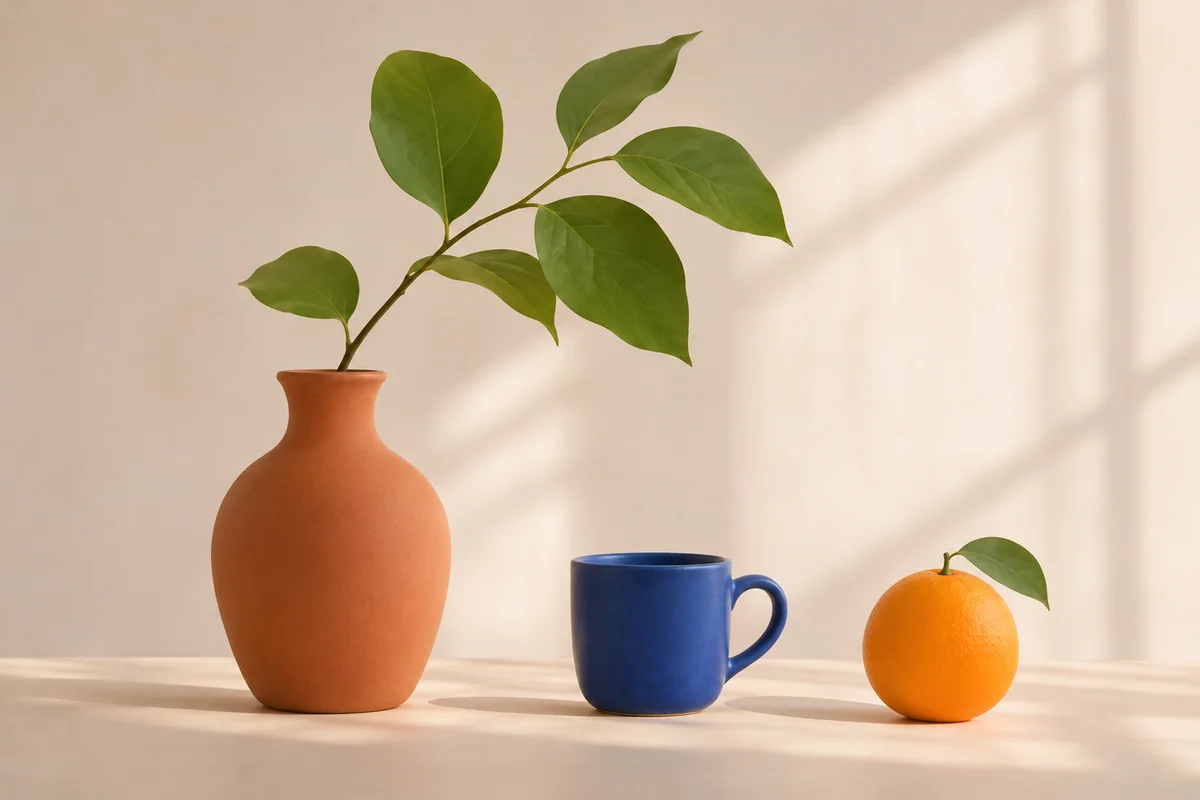
Use the left and right arrow keys to compare the original and edited image.
Choose the image you want to invert. It is decoded and processed locally in your browser.
Inspect the negative color effect and compare important details with your original image.
Download the inverted image as a PNG. Existing transparent areas keep their alpha values.
At 100% strength, each red, green, and blue channel becomes 255 minus its original value. Black becomes white, white becomes black, and other colors shift to their RGB opposites.
Yes. It changes RGB color values and keeps the alpha channel unchanged. Downloading as PNG preserves that transparency.
Color inversion transforms all three RGB channels and changes lightness as well as color. A hue rotation shifts the hue and produces a different effect.
Yes. At 100% strength, pure black pixels become white. Other visible colors are inverted too, so inspect colored and antialiased edges.
Inversion provides a basic negative-to-positive color flip. Scanned film may also need correction for the film base, exposure, and color balance in a photo editor.
The color inversion runs in your browser. The selected image is not uploaded for this operation.
No credits are required. You can preview the inversion and download the resulting PNG using the local tool.
At 100% strength, applying RGB inversion twice restores the starting RGB values. Browser color handling can affect the appearance of an exported file.