An avatar with a clear face
Bring the face into the center of a circular profile picture. Leave a little space above the hair and check the chin before exporting at 512 or 1024 pixels.
 StylMorph.
Turn a photo, pet portrait, or graphic into a circular image with transparent corners. Adjust zoom and position, choose an output size, and download a PNG processed in your browser.
Open the free tool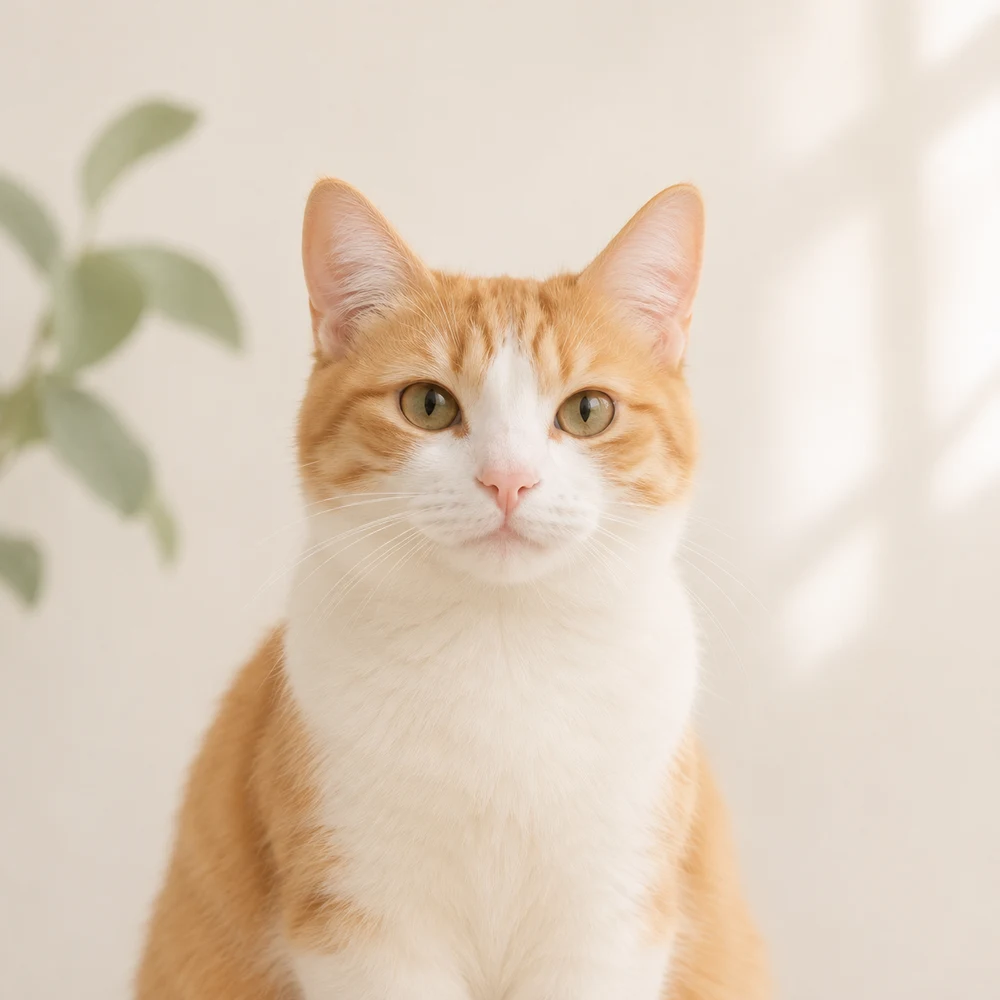
Add your photo
PNG, JPG or WebP · Up to 10 MB
24 megapixels maximum
Move left/right or up/down within the crop.
Larger exports increase pixel dimensions; they do not add image detail.
Opening the sample…
Your photo stays in this browser. No account or credits needed.
Use the left and right arrow keys to compare the original and edited image.
Your photo
Bring the face into the center of a circular profile picture. Leave a little space above the hair and check the chin before exporting at 512 or 1024 pixels.
Place the eyes near the upper half of the circle and keep ears inside the edge. A wider source photo gives you room to position a pet that was photographed off center.
Crop a product detail, illustration, or team photo into a circle for a card or website. Transparent corners let the circular image sit on the background color of your layout.
A circle cuts away the corners of the frame. Choose a source with enough space around faces, ears, lettering, or other details you want to keep.
Use zoom to choose how closely the circle frames the subject, then adjust its position. Check the full edge before downloading, especially the top of hair and the sides of wide objects.
Use 512 or 1024 pixels for a square PNG canvas with a circular image inside. Original short side uses the shorter dimension of your source as the exported canvas width and height.
Choose a static PNG, JPG, or WebP up to 10 MB and 24 megapixels. The image is loaded and processed in your browser.
Adjust zoom and position until the subject fits. Choose 512 pixels, 1024 pixels, or the original short-side size and inspect the circular preview.
Save the circular crop as a PNG. Place it on a colored background or upload it as an avatar, then check the destination’s own crop preview.
Open your image, adjust its zoom and position inside the circular preview, and choose an output size. Download the result as a PNG with transparent pixels outside the circle.
Image files use a rectangular pixel canvas. This tool places the circular photo on a square canvas and makes the corners transparent. Those corners let the circle blend into the background of a page or design.
It uses the shorter source dimension for both sides of the output canvas. A 2400 × 1600 image produces a 1600 × 1600 PNG containing the circular crop. Your zoom and position determine which part of the photo appears inside it.
Choose 512 pixels for a compact avatar file, or 1024 pixels when you want a larger image for a layout or profile. Exporting a small source at a larger size creates more pixels but cannot recover missing detail.
The tool makes the area outside the circle transparent. The photo inside the circle keeps its existing background. Use zoom and position to choose how much of that background is visible around the subject.
Some viewers display transparent pixels against a solid background. Open the PNG over another color in an editor to check the transparency. Keep the PNG format when using the image, because JPEG does not preserve transparent corners.
Use a static PNG, JPG, or WebP image up to 10 MB and 24 megapixels. A clear source with space around the subject gives you more flexibility when adjusting the circular crop.
The cropper is free and processes your selected image locally in your browser. You can adjust the framing and download a PNG without uploading the photo for editing, creating an account, or spending credits.