Use a narrow border in a feed
A small pale edge creates separation from the page. Try 2–4% first when you have limited space for the image.
 StylMorph.
Add an even solid border outside a photo. Set its width and color, see the finished dimensions, and save a PNG.
Add a photo border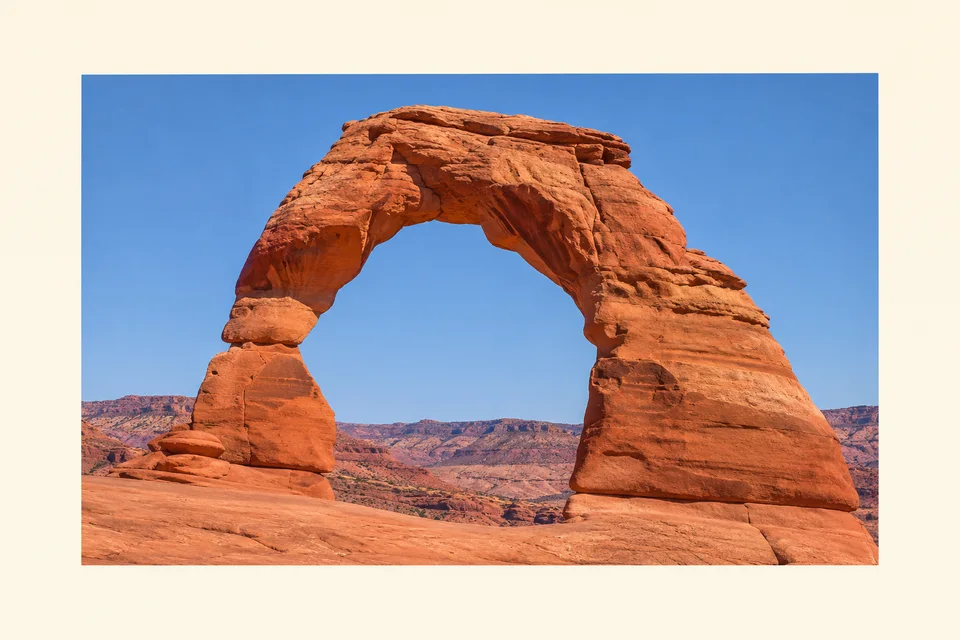
JPG, PNG or WebP · up to 10 MiB and 24 megapixels
Width is a percentage of the shorter side, applied to each edge.
Free · processed in your browser
Opening image…
Your preview will appear here.
A small pale edge creates separation from the page. Try 2–4% first when you have limited space for the image.
Try 7–12% to leave room around the image. Pick a color from the lightest part of the photo or the paper it will sit on.
The width is applied to each of the four edges. Check the displayed output size if another site or printer expects exact dimensions.
Choose a file or try the sample.
Move Border width and choose a solid color. Check all four edges in the finished preview.
Download the enlarged canvas with the original photo centered.
The border adds space outside the original. All four edges of the photo remain visible.
It uses the shorter side of the original. A 5% border on a 1,000 × 600 photo adds 30 pixels on every side, for 1,060 × 660 overall.
Set Border width to 0%. The border color still fills any transparent areas.
This tool adds an outside border, leaving the original framing intact.
The chosen border color also fills transparent parts of the image.
The finished image downloads as a PNG.
Choose a JPG, PNG or WebP up to 10 MiB and 24 megapixels.
The tool processes your image in this browser. Your selected file stays on your device.