
Add Text to an Image
Add a caption to your photo, choose the font, color and size, move it into position, and save a full-resolution PNG. Free, with no account required.
Open the tool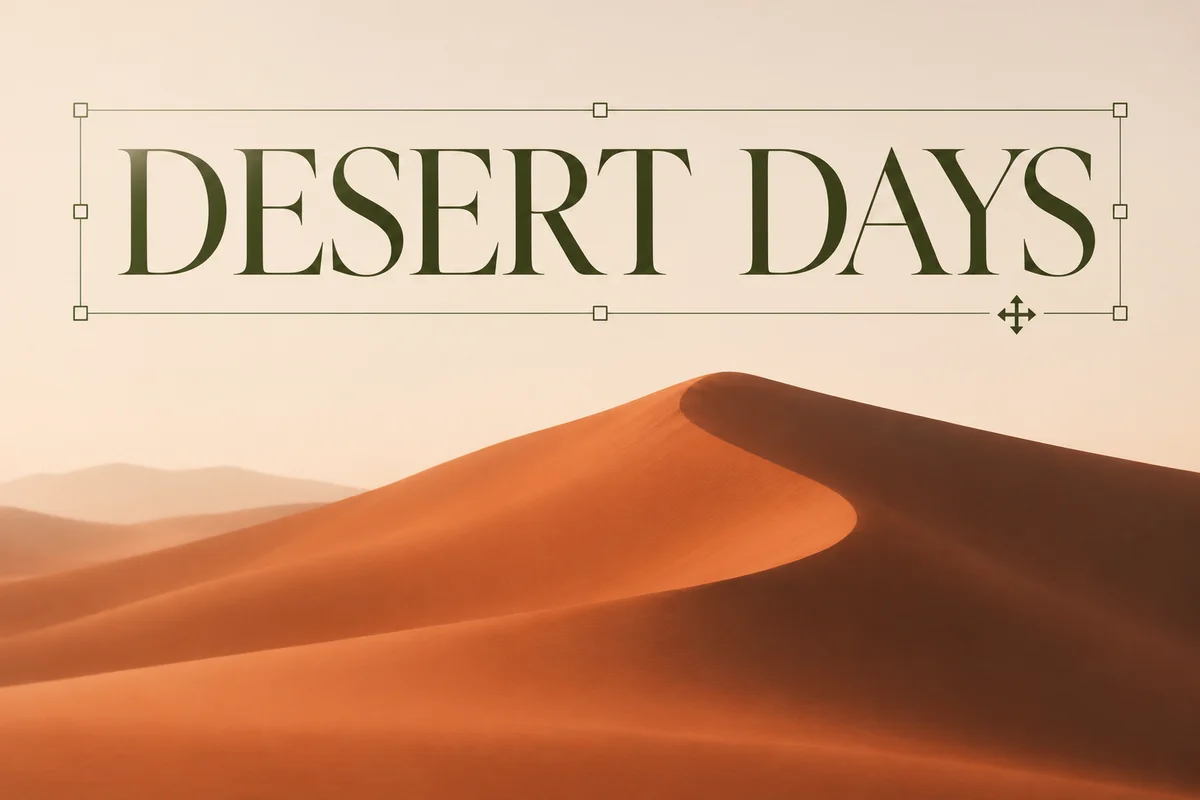
PNG, JPG or WebP · up to 10 MiB and 24 megapixels
Free · no account required · processed in your browser · your photo stays on your device.
Choose your photo or try the sample to create a result here.
Make the words work with the photograph
A headline needs a clear reading area, enough contrast and room around the edges. This editor places one text block over your original photo. Use it for a title card, travel caption or simple announcement; the downloaded PNG keeps the original image dimensions.
Choose the original photo
Open a PNG, JPG or WebP up to 10 MiB and 24 megapixels. Start with an image that has an uncluttered area for words. Use the sample to try the controls before selecting your own file.
Write and place the text
Type up to 180 characters and use Enter for up to four lines. Choose serif, sans serif or monospace, then drag the visible handle to move the block. The focused handle also moves with the arrow keys.
Check the PNG at its destination
Choose a contrasting text color and a size that remains legible at the final display size. Save the PNG, then view it in the app or layout where people will read it.
Try this with the sample
Use the mountain-lake sample with the caption “A quieter place.” Set the editorial serif to 9%, choose white and keep the soft shadow. Place the block above the lower edge, away from important landscape detail. Switch to clean sans serif to compare the tone while keeping the same words.
Try the settings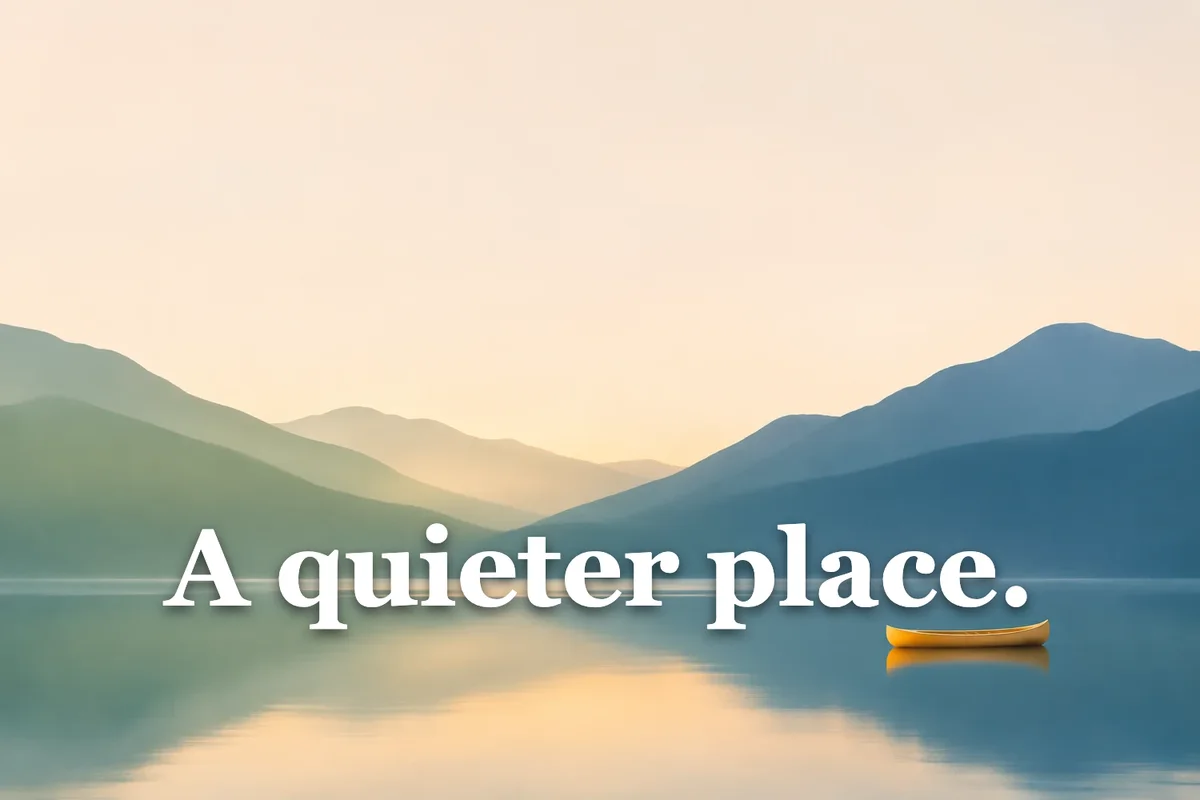
Choose the right layout and export
- A title over a busy photo
- Place the block over the quietest part of the image. A soft shadow can separate letters from small tonal changes. For a complex background, prepare a clear panel or a multilayer design in PhotoCraft.
- A long caption or multiple text blocks
- This workspace puts up to four lines in one movable block. Shorten the copy and use deliberate line breaks. For independently placed headlines, dates and logos, use PhotoCraft and keep an editable project.
- Color and contrast
- Choose a solid color that separates from the picture beneath each line. The Color Code Visualizer helps compare a solid pair; a photograph needs a check across all the tones behind the text.
- Source size and export size
- The PNG preserves the source width and height. Text size is relative to image width, and long lines fit within 90% of that width. Check small lettering after any later social-network compression.
Frequently asked questions
Can I rotate the text or add another block?
This workspace keeps one text block horizontal over the photo. For rotated type or independently placed blocks, choose a full editor with those controls.
Why are letters near an edge clipped?
Move the block inward and inspect the entire line before saving. Reset text position returns it to the default lower-center position.
Can I move the text with my finger?
Yes. Drag the round handle over the text block. The image stays still while the block moves. On a keyboard, focus the handle and use the arrow keys.
Why did a long line become smaller?
The whole text block scales down when its longest line exceeds 90% of the image width. Add a line break or shorten the wording to keep the lettering larger.
Does the PNG keep editable text?
The PNG combines the photo and letters into one image. Keep your original photo and copy. For a layered editable master, work in PhotoCraft and save the project there.
Can I upload my own font?
Choose from the three available system-font styles in this workspace. For a specific brand font, use a full editor with your licensed font file.
Can I make a transparent text-only image?
This tool uses your photo as its canvas. Use a transparent PNG as the source when you need transparent areas; the PNG export preserves the remaining transparency.
Does it cost credits?
Add text and save your PNG for free, with no account required. Both steps use local image processing and consume no credits.
Related tools and guides
Make your screenshot explain one action
Choose a clear note, pointer and delivery format with the screenshot annotation guide.
Make your screenshot explain one action