
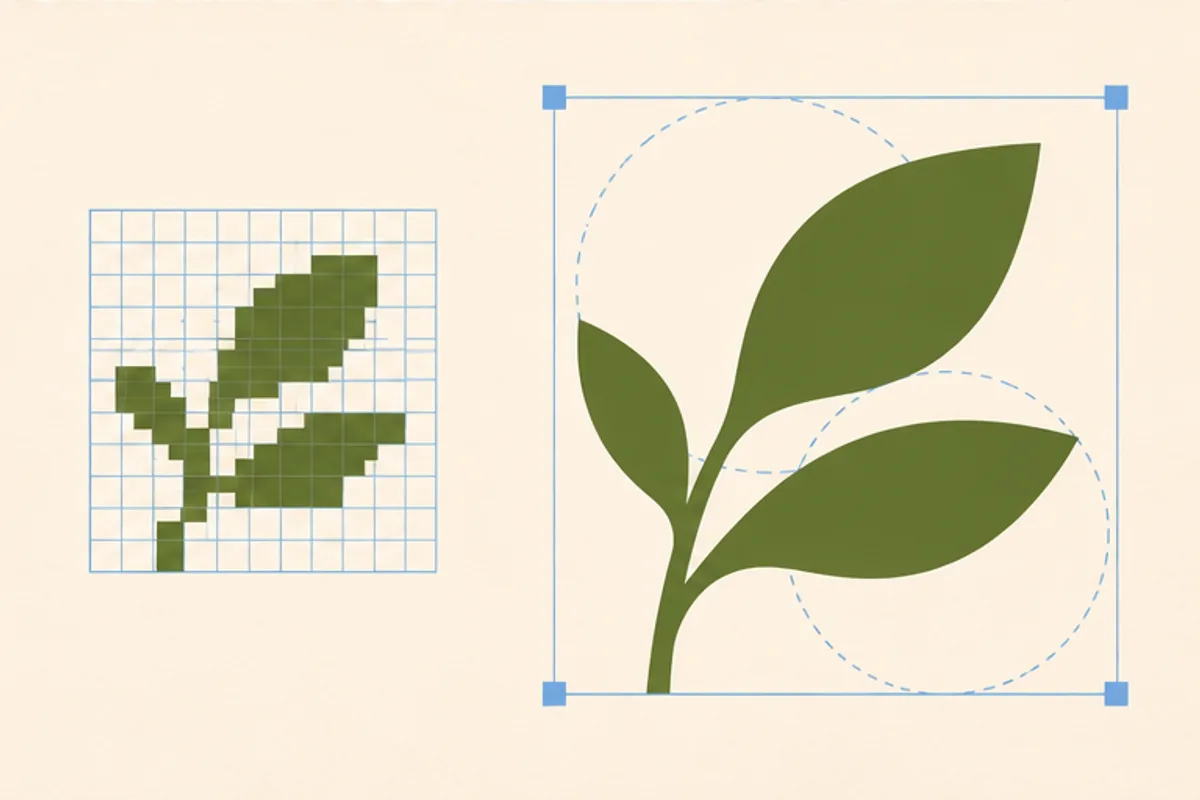
Choose SVG for a logo or icon drawn as vector shapes that need to stay sharp at many sizes. Choose PNG for screenshots, pixel art, and transparent artwork that you need to deliver at a known pixel size. Keep the editable master and export a separate copy for each destination.
Which format should you use?

Keep the master logo sharp
Save a clean SVG with a viewBox so the artwork can scale to different containers. Preview it at small and large sizes. A bitmap placed inside an SVG still has a fixed pixel grid, so keep the original source shapes when you can. For platforms that reject SVG, export a transparent PNG at the requested dimensions. MDN’s image format guide
One logo, two deliverables
For a header that displays a logo at 160 × 48 CSS pixels, use the SVG master on your site. If a form asks for a 320 × 96 PNG, export that size from the same master. Keep the crop and proportions aligned, then check the PNG against light and dark backgrounds.
Keep screenshot text readable
Crop the screenshot at its original size to keep the text clear. Export a PNG, then open the new file at 100% and read the smallest label. If you also need a smaller copy, compare it separately before replacing the original.
When a screenshot has to fit a smaller card
Crop to the part of the screen that tells the story before resizing. Compare the smallest labels in the card at normal zoom. If the text is too small, use a tighter crop or provide a link to the full-size image.
Choose the right export for an upload form
- Read the form’s accepted formats, pixel dimensions and file-size limit.
- Export a copy in an accepted format at the final dimensions. For a transparent logo, check it on the background you expect to use.
- When the file is an opaque photo and PNG exceeds the limit, try a JPG or WebP export if the form supports it.
Check the result before publishing
Compare the exported image with the master at its destination size. Check edges, the background and the smallest type. If a data URL contains a PNG, JPEG or WebP, use the Base64 Image Viewer to preview the image and check its pixel dimensions and file size. To use a raster photo in a PNG-only workflow, convert your JPG to PNG.
PNG vs SVG questions
Which format is smaller or faster for a website?
Simple logos and icons are often compact as SVG. A complex vector illustration can be heavier. Export the PNG at the pixel size you need. Compare it with the SVG at the same display size, then check both file sizes.
Do PNG and SVG both support transparent backgrounds?
Yes. PNG can store opacity per pixel, and SVG can leave areas unpainted or apply opacity to shapes. Test the result on your actual light and dark backgrounds.
Does converting PNG to SVG make a low-resolution logo sharp?
A conversion that embeds the PNG preserves its existing pixels. To get real vector edges, redraw or trace the original logo into shapes, then inspect its small and large exports.
What should I upload if a platform rejects my SVG?
Export a PNG at the platform’s requested dimensions. Keep the editable SVG for later changes and check that the exported PNG retains transparency if you need it.
What should I use for a detailed photograph?
Use a raster file. Choose PNG if you require transparency or lossless pixels and the file fits. For a typical opaque web photo, compare JPEG or WebP at the same dimensions.
Need a layered master and a separate web image? See Photopea vs Pixlr for layers and exports.