StylMorph logoStylMorph.

Photopea alternatives for layered photo editing

November 15, 2026
Three translucent artwork layers stacked over an orange photograph

Choose a Photopea alternative based on what you need to make and which file you need at the end. A finished image for a web page, a layered poster for a client and a painting you’ll keep refining each call for a different workflow.

Can I keep editing in the browser?

Choose Pixlr Editor for social graphics or web images when you need to work in a browser. You can assemble a photo and a logo on separate layers, mask part of a layer and export a PNG. Pixlr Editor
Editorial illustration of a coral coastal facade with translucent crop and color cards on a violet background
Editorial illustration of crop and color choices for a web graphic.
Try it
Open a product photo, add a logo as a second layer and resize the logo to fit the banner. Download a PXZ, Pixlr’s editable project file. Reopen it to check that the logo still moves independently.
File handoff
Download the PXZ for future edits because clearing browser data can erase project history. Share a PNG for review, or the PXZ with a teammate who also works in Pixlr. If they require PSD, start with the editable PSD workflow below.

How do I hand off an editable PSD?

Try Affinity on desktop when a client sends a layered PSD and expects an editable PSD back. Affinity can open the original, save your work as an Affinity document and export a new PSD. You’ll need an internet connection and a free Canva account to activate the desktop app. Affinity’s PSD guide · App setup
Editorial illustration of stacked translucent sheets with dark graphics, a coral panel and a cream modernist building
Editorial illustration of the separate parts of a layered design.
Try it
Before opening the PSD, go to Settings → General. Enable the options to import PSD text as text and to import PSD smart objects where possible. Open a copy of a poster and edit the headline and smart object if those layers are editable. Use File → Export to create a separate PSD, then try the same edits in the recipient’s editor.
File handoff
By default, smart objects arrive as pixel layers. Keep the native Affinity project and treat the recipient’s PSD as a separate export. Verify masks, text and effects that the recipient needs to edit in their own app.

What should I use to retouch photos?

Choose GIMP for desktop photo retouching when you want to control tone and clean up small blemishes by hand. Curves lets you target a tonal range, and Heal samples nearby texture and blends it into the area you’re repairing. Curves · Heal
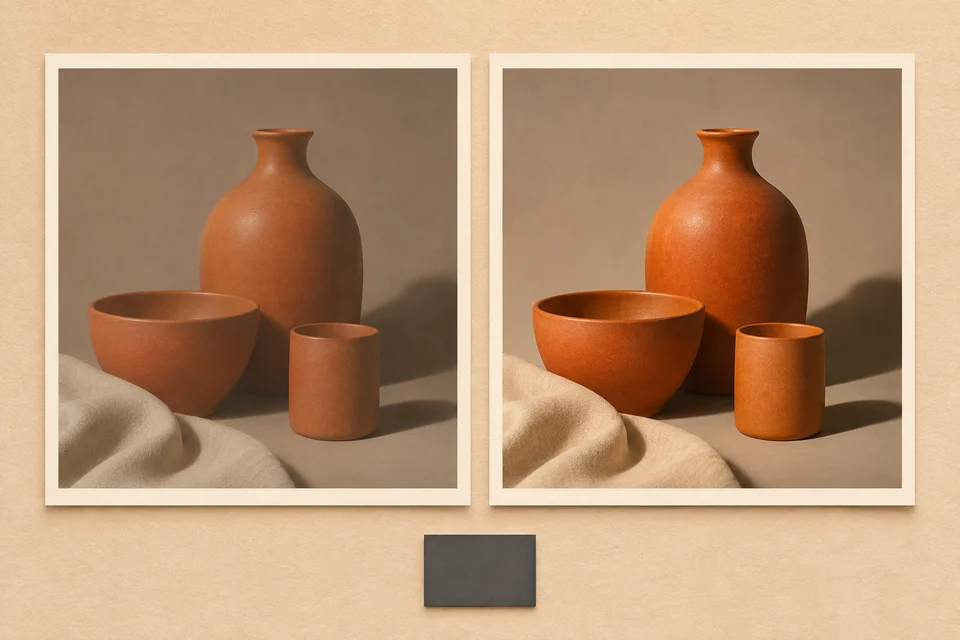
Editorial illustration of two orange pottery still-life prints with different tonal treatments
Editorial illustration of a still life in two tonal treatments.
Try it
Duplicate the photo layer and lift the middle of the tone curve slightly. Select Heal, Ctrl-click a clean area near a dust spot, then release Ctrl and click the spot. Toggle visibility of the top duplicate to compare texture and brightness.
File handoff
Save the editable master in GIMP’s XCF format. Share a JPEG for review. If the recipient works in a different editor and needs PSD, export a test and check the layers and effects they need. GIMP’s file guide · PSD support

Which editor suits digital painting?

Choose Krita if you draw comics, paint textures or ink sketches. Brush presets give you different stroke textures, and the brush stabilizer helps smooth deliberate lines. Separate paint layers let you revise color without redrawing your outlines. Krita’s painting features
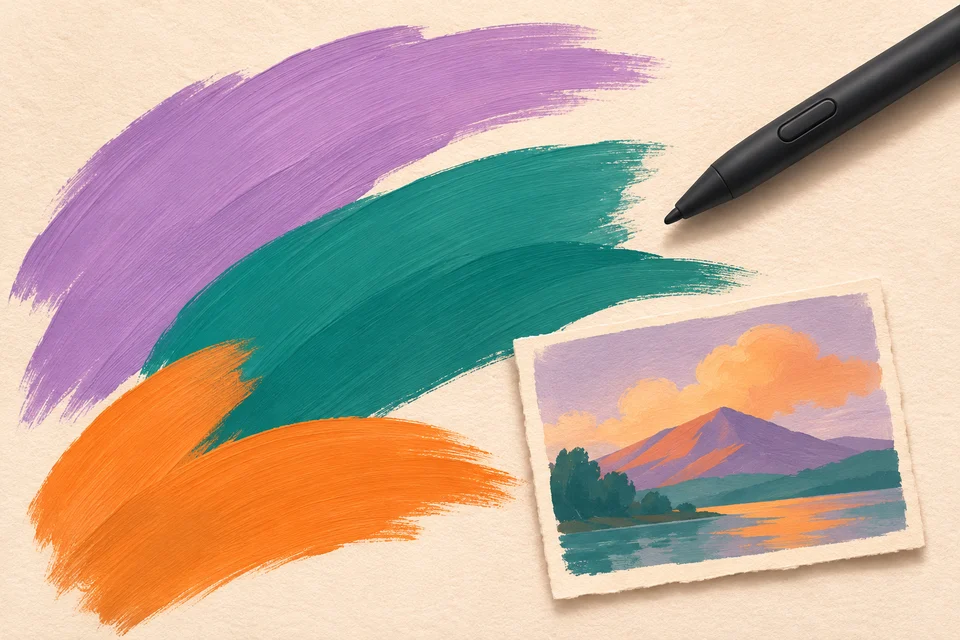
Editorial illustration of lilac, teal and orange brushstrokes on ivory paper beside a dark stylus
Editorial illustration of brush textures for digital painting.
Try it
Ink a rough sketch on a new paint layer with brush smoothing enabled. Add color on a layer below the ink and hide the sketch to see whether the outlines and colors stand on their own.
File handoff
Keep the editable painting in Krita’s KRA format. Share a PNG for review. For a collaborator who uses another editor, test a PSD with the layers, masks and effects they need to change. KRA format · PSD support

Editable PSD handoff checklist

  1. Duplicate a real PSD and agree on what the recipient must be able to edit. List the required fonts and keep the masks, effects and smart objects their work depends on in the test file.
  2. Open the copy in your candidate app and try the edits you agreed on, such as changing a headline or toggling a mask. Note which elements stay editable. Save a native working copy, a PSD for the handoff and a PNG reference of the intended appearance.
  3. Reopen the exported PSD in the recipient’s editor. Compare its typography, colors and transparency against the PNG. Repeat the required edits, then save and reopen once more.
  4. If an element loses editability, agree on which elements can be rasterized or complete that handoff in the app that can preserve them. Send the verified PSD with the PNG reference.

For a quick change to a flat copy, open the PhotoCraft Editor. Use Add a Watermark to a Photo to mark a proof, or try these simple sketchbook ideas for your next painting study.