
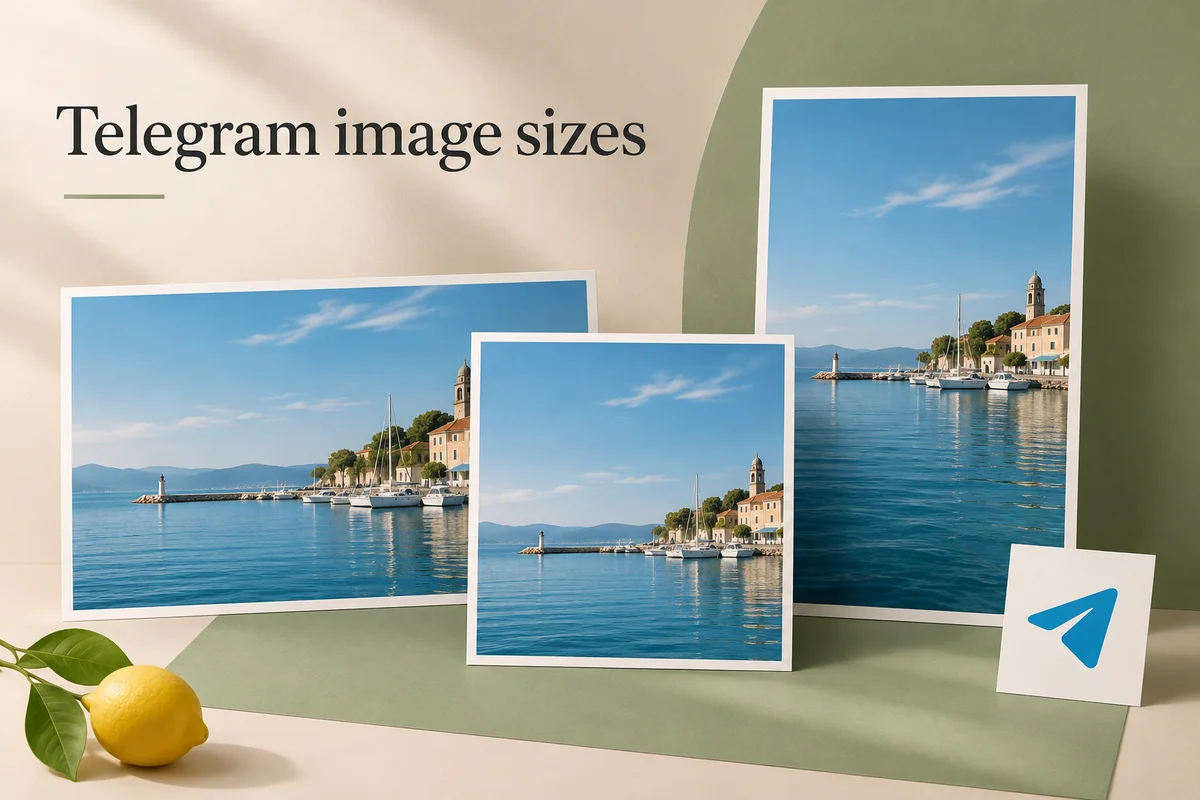
Choose a shape for the post, then choose how to send it. A square, landscape photo or portrait design can all work in a Telegram channel. The pixel dimensions you prepare and the quality you send are separate choices. Start from the examples below, then check the post in the client your readers use.
Start with the shape of your post
These are practical starting dimensions for a clean export. They are editorial suggestions for common designs. Telegram’s own quality options determine how a photo is delivered.
| Post | Starting pixels | Best use |
|---|---|---|
| Square | 1200 × 1200 | A single announcement, product tile or compact collage. |
| Landscape | 1280 × 720 | A scene, video thumbnail or wide composition with brief text. |
| Portrait | 1080 × 1350 | A taller layout with room for a headline and a photograph. |
Use your original image’s shape when a crop would remove useful content. A 4:3 landscape can remain 4:3. If a design includes essential words near an edge, check both the post preview and the opened image. The Image Aspect Ratio Calculator shows the relationship between your width and height.
Choose photo, HD or file
Telegram’s FAQ describes three choices. Standard photos are optimized for quick delivery. HD retains more pixels while still compressing the image. Sending as a file preserves the original photo without photo compression. The attachment menu exposes the quality and file options in supported clients. Telegram’s photo quality explanation
- Standard photo
- Use it for casual images where quick loading matters. Open the delivered photo and check small lettering before using it for an announcement.
- HD photo
- Try this for a polished channel post when the client offers it. Inspect fine detail after sending because the photo still passes through Telegram’s delivery settings.
- Send as a file
- Use this when someone needs the original pixels for editing, proofing or later printing. The receiver gets a file attachment, which is a different reading experience from an inline photo.
- Photo plus original file
- For a design review, post a readable preview and supply the working export as a file when needed. Name the file so reviewers can identify the version.
Prepare one channel post
- Start from a useful master. Keep the full photo and an editable design. Export a copy for Telegram instead of repeatedly saving a compressed download.
- Choose a shape. Arrange the photographs on a canvas in the PhotoCraft editor. For a single wide image, keep enough space around the subject to crop later.
- Use readable text. Put short essential wording on the image and longer explanation in the post caption. Check it at roughly phone width before uploading.
- Choose the delivery option. Send a test image to your own Saved Messages or an appropriate private test chat, then inspect the delivered image at full size.
- Save the file when exact pixels matter. Compare the delivered file’s width, height and appearance against the original export before handing it to a client.
Keep private text out of a public post. The area cover tool lets you select one rectangle and choose a solid cover. Inspect the saved image and check for the same information elsewhere in the frame.
For a photographed page, correct its perspective first so the text lines are easier to inspect before sharing.
Check these limits for bot uploads
For a new photo uploaded to sendPhoto with multipart/form-data, Telegram allows up to 10 MB. When Telegram fetches the photo from an HTTP URL, the cap is 5 MB. The photo’s width plus height must be at most 10,000 pixels, and its larger-side to smaller-side ratio must be at most 20. These conditions apply to bot uploads. Regular channel posts also depend on the client and delivery option. Telegram’s file transfer limits and sendPhoto geometry
| Image | Geometry check | What to confirm next |
|---|---|---|
| 1200 × 1200 | Sum 2400; ratio 1 | Actual file bytes and readable caption. |
| 1280 × 720 | Sum 2000; ratio about 1.78 | Small text after delivery. |
| 9000 × 1500 | Sum 10,500 | Reduce the dimensions before sendPhoto. |
Fix soft text and unexpected crops
- Text gets soft
- Use larger lettering, stronger contrast and fewer words on the design. Try HD, or send as a file for a recipient who needs the original.
- A preview looks cropped
- Open the image to inspect the actual file. If the essential content is still difficult to read in the feed, adjust the composition or add margins in PhotoCraft.
- The upload form rejects the image
- Check that client or bot’s actual bytes, geometry and format conditions. The 100 KB tool is for destinations with a stated 100 KB cap; Telegram’s sendPhoto limit is larger.
- A generated image has small mistakes
- Check spelling, product details and faces in the source before sharing. The reference-image guide offers a checklist for inspecting a generated first result.
Questions before posting
Is 1280 pixels a mandatory Telegram post size?
Use it as a practical export starting point. Choose the shape your content needs and check the actual delivery quality. The Bot API separately states the geometry and byte limits above.
Can I upload a square collage?
Yes. Choose a square canvas in PhotoCraft, arrange your photos and export a PNG or JPG. Check its delivered appearance in the Telegram client you use.
How do I preserve the original file?
Choose the attachment option to send as a file. Telegram’s FAQ describes it as the uncompressed photo option.
Should I reduce every image to 100 KB?
Choose a size that preserves the detail your post needs and meets the destination’s stated conditions. Use the separate 100 KB tool only when that cap is part of your workflow.